Agent or Studio?
Use the Agent when…
you know what you want but not which model to use. Describe it, and the Agent picks the model and settings and shows you a plan.
Use the tools in Create when…
you want a specific model, exact settings, or your own start or end frame. You see every option and the exact cost on the Generate button.
Step by step
-
Open Create and pick a category
Tap the Create tile on Home or in the AI button’s launcher. Pick a category: Audio, Avatar, Face, Image, Image Editing, Music, Style, Video, Video Editing or Video Extend.
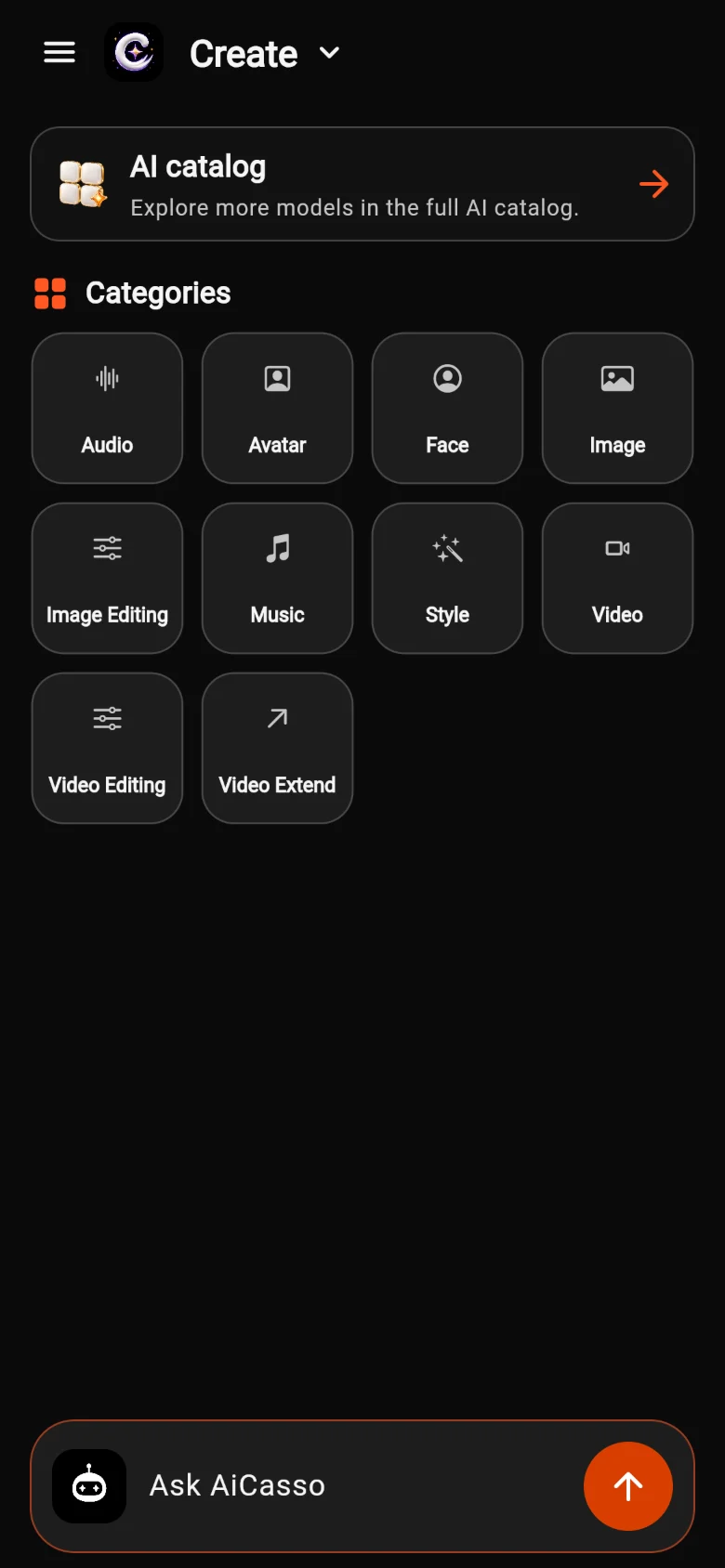
Categories in Create. -
Choose the tool
Each category has a picker (1). Open it to see every tool with a one-line description, or type in Search modes... (2) to find one by name.
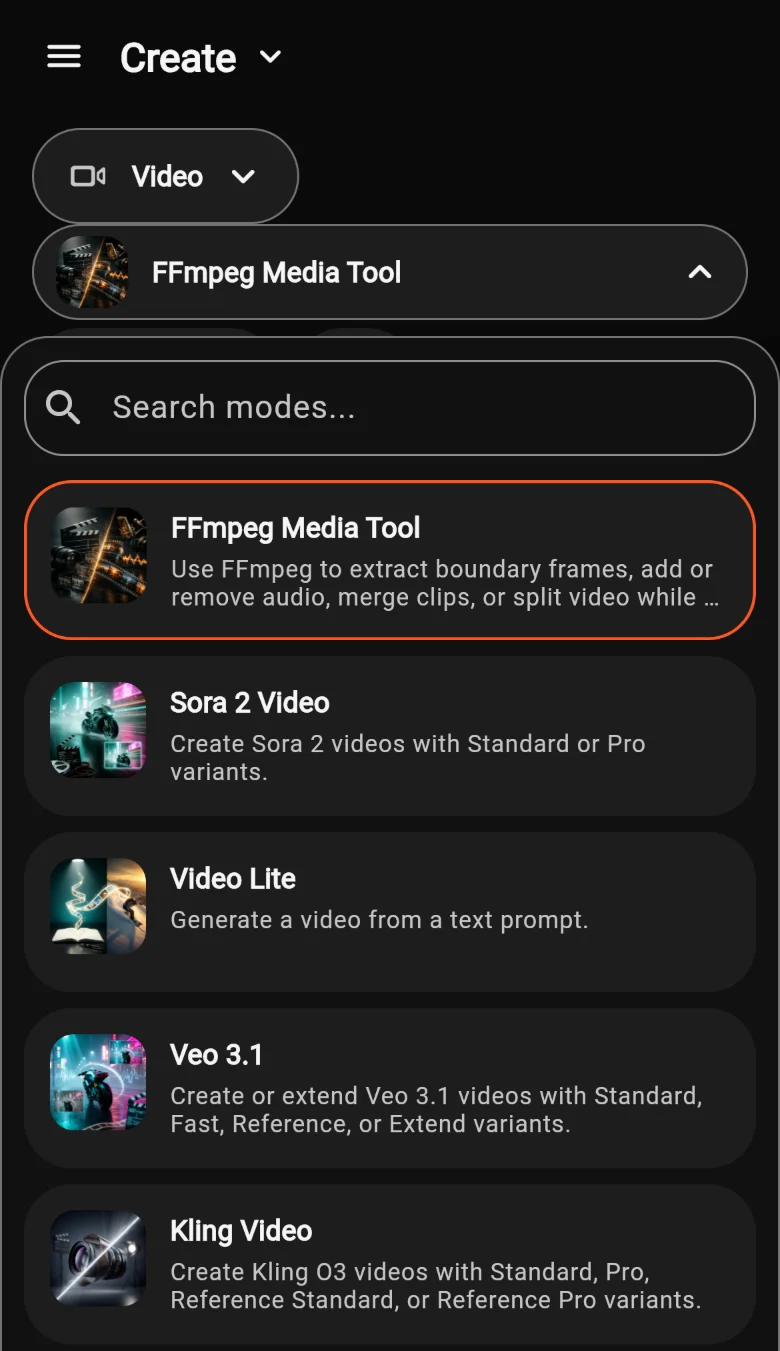
1 Category 2 Search the tools -
Write your prompt, or borrow one
Type what you want in the Prompt box. Stuck? The light bulb (1) opens Prompt Examples written for that tool, and Help (2) opens a Guided Tutorial.
The prompt guide explains what makes a prompt work.
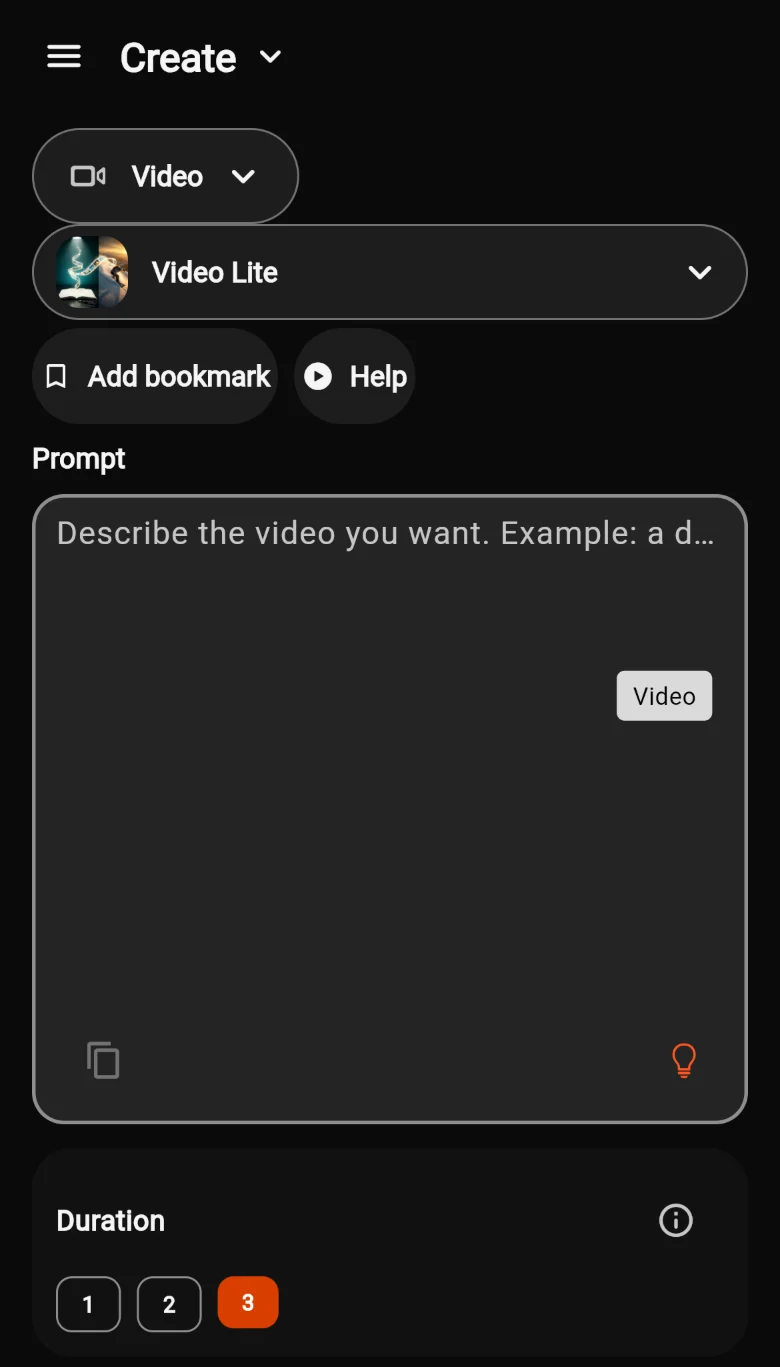
A video tool, ready for a prompt. -
Add your own image (optional)
Some tools take your own media. This video tool has an optional Start frame and End frame (2): add a photo and the video starts or ends on it.
Some tools have more than one way to work, like Create and Reference. Pick the one that fits.
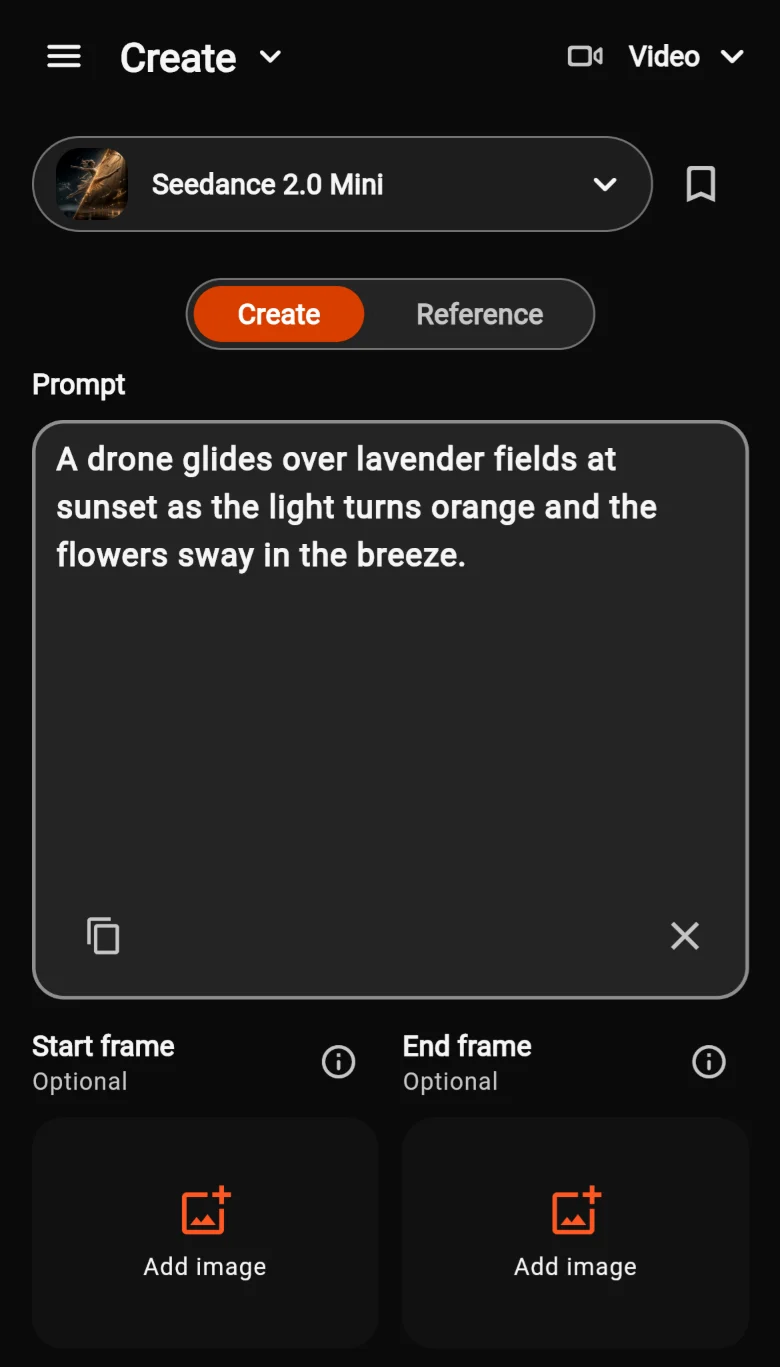
Optional start and end frames. -
Check the settings, then Generate
The main settings sit just above the button, here Resolution, Duration and Aspect Ratio. Tap one to change it, or tap the sliders icon for all settings.
The Generate button shows the exact cost in points (1), and it updates as you change settings. Tap it to start. Your result shows up in Activity and in your Library.
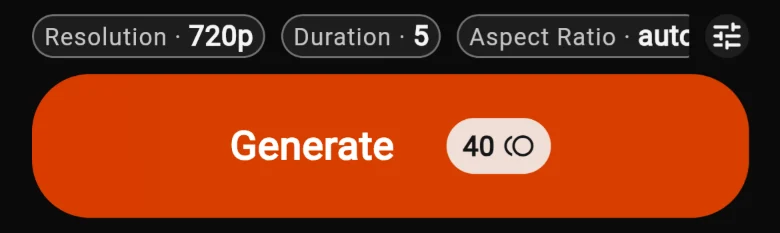
The cost is always on the button.
The AI catalog
-
Browse more than a hundred models
The AI catalog lists every AI model in AiCasso, starting with Featured ones. Open it from its tile on Home, the AI button, or the top of the Create screen.
Search by name (1) or filter by what you want to make (2). Tap a model to open it.
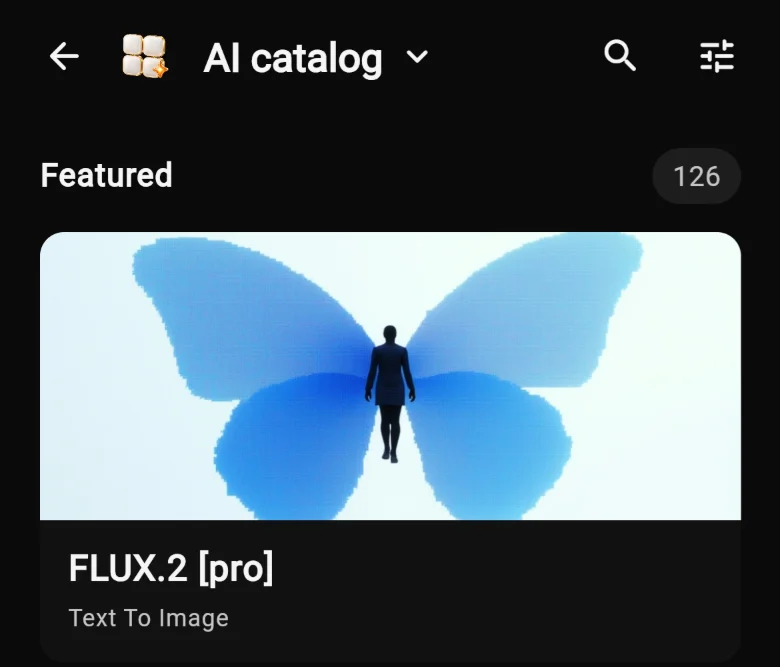
The AI catalog. Sign in to browse it.
Tips
Bookmark your favorites
Tap Add bookmark on a tool you use often. Your recent tools also appear in the launcher and on Explore.
Try the examples first
A tool’s Prompt Examples show what it’s good at. Start from one and change the subject.
Start small
Shorter, lower-resolution versions cost fewer points. Get the idea right, then make the full version.
Not working right now?
If a tool says “This model is experiencing issues right now”, try again later or pick a similar tool. Failed creations are normally refunded.