Step by step
These are real screenshots from making the video above. It took about four minutes from idea to finished video.
-
Open the Agent
On your phone, tap the AI button in the middle of the bottom bar, then tap Agent. You can also type straight into the Describe your idea box at the bottom.
You’ll also find Ask AiCasso at the bottom of the Create screen, and in the sidebar on a computer.

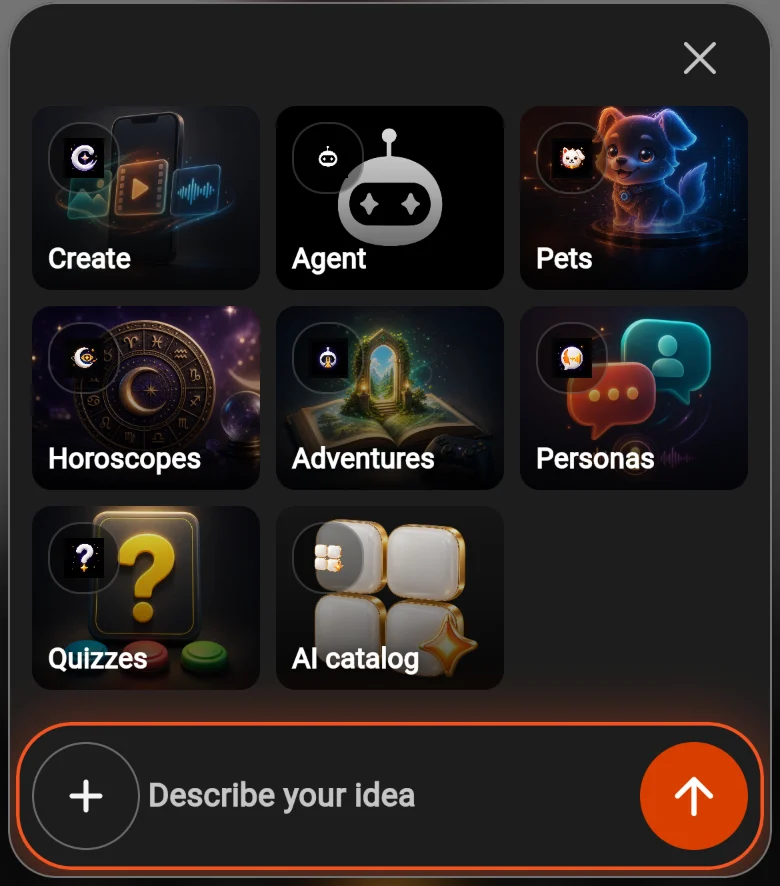
The AI button opens this. -
Say what you want, the way you’d say it to a friend
Type in the Message AiCasso box. Say what you want (an image, a video, a song) and what it should look or sound like, then tap send (1).
The Agent picks the model and settings, and sends your words to the AI as the prompt, so the detail you give is the detail you get. The first time, AiCasso asks you to accept its AI content and safety agreement.
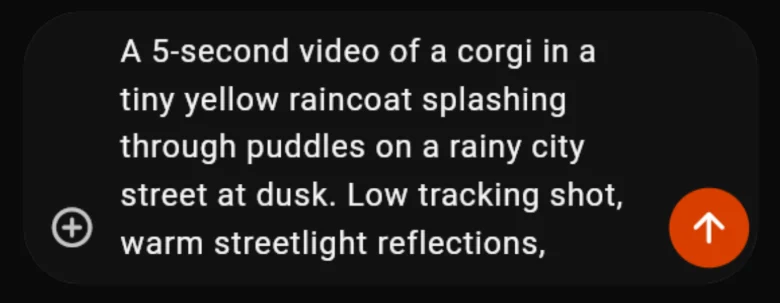
The exact idea that made the video above. -
Add your own photo, clip or song (optional)
Tap + (Add image, video, or audio) to attach your own media. Use it when you want your dog, your face or your sketch in the result. You can also type @ to use one of your saved assets.
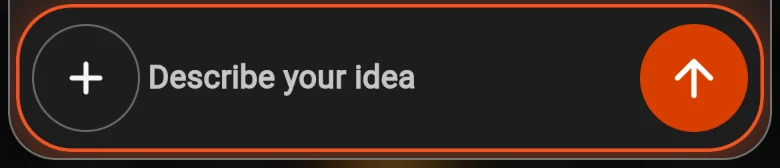
1 Add a photo, video or audio file. -
Check the plan
In a few seconds the Agent replies with a card that says Ready to create. It shows:
- the AI model it picked. Tap (i) (1) to read about it;
- your prompt, word for word;
- the main settings, here Length, Resolution and Shape;
- how long the price is locked.
Nothing has been made yet, and no creation points have been spent.
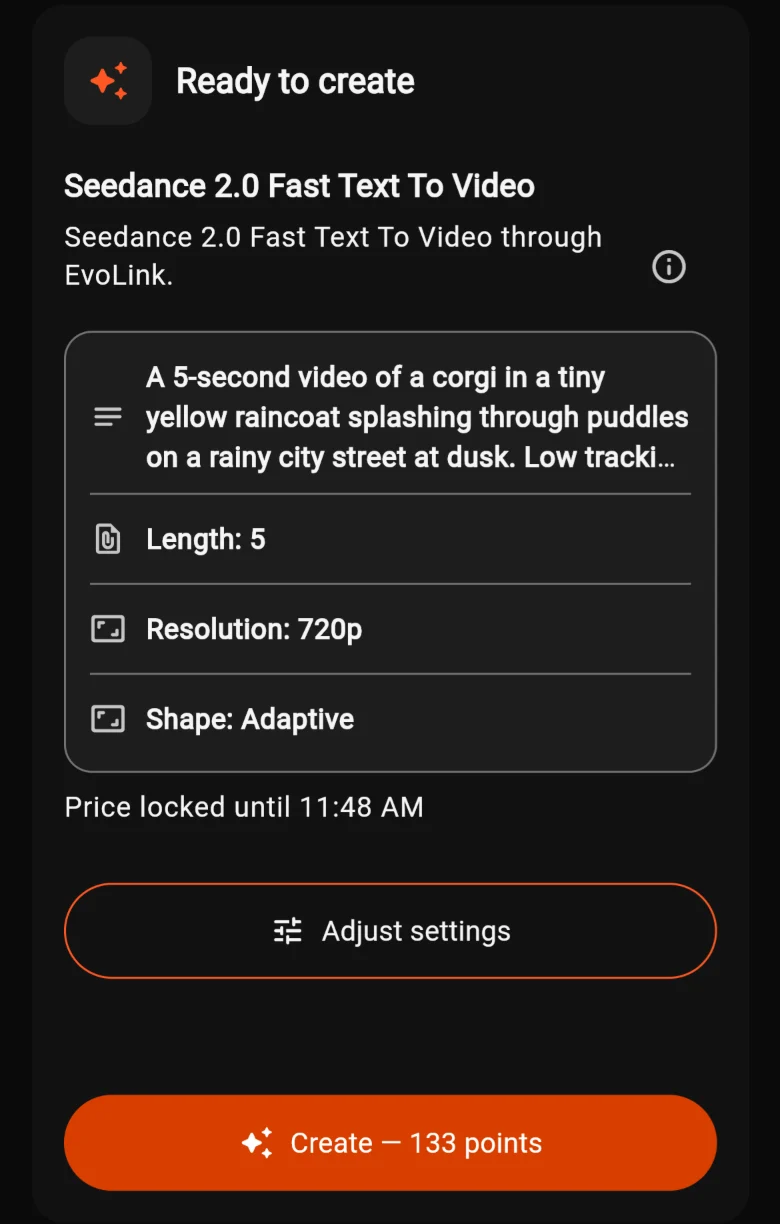
1 Model details 2 Adjust settings 3 Create, with the exact cost -
Change anything before you start
Tap Adjust settings (2) to change the length, resolution or shape yourself. Or just reply in the chat, for example “make it 8 seconds” or “night instead of dusk”, and the Agent sends a new plan.
-
Tap Create
The Create button (3) shows the exact cost in points, for example Create — 133 points. Tapping it approves that cost and starts the work.
The price stays locked until the time on the card. After that, the plan refreshes its price before you can create.
-
Watch it come to life
The chat shows what’s happening, for example Filming your video with the time so far. You can leave and come back.
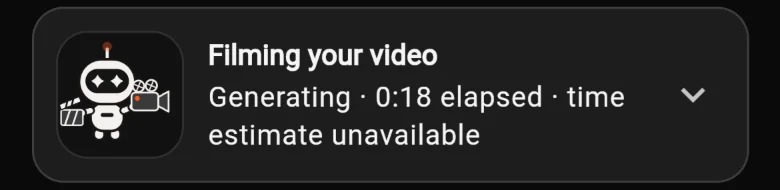
When it’s done, the result appears right in the chat. Tap play to watch it. Not quite right? Keep chatting: “brighter colors” or “make the puddles bigger” gets you a new plan.
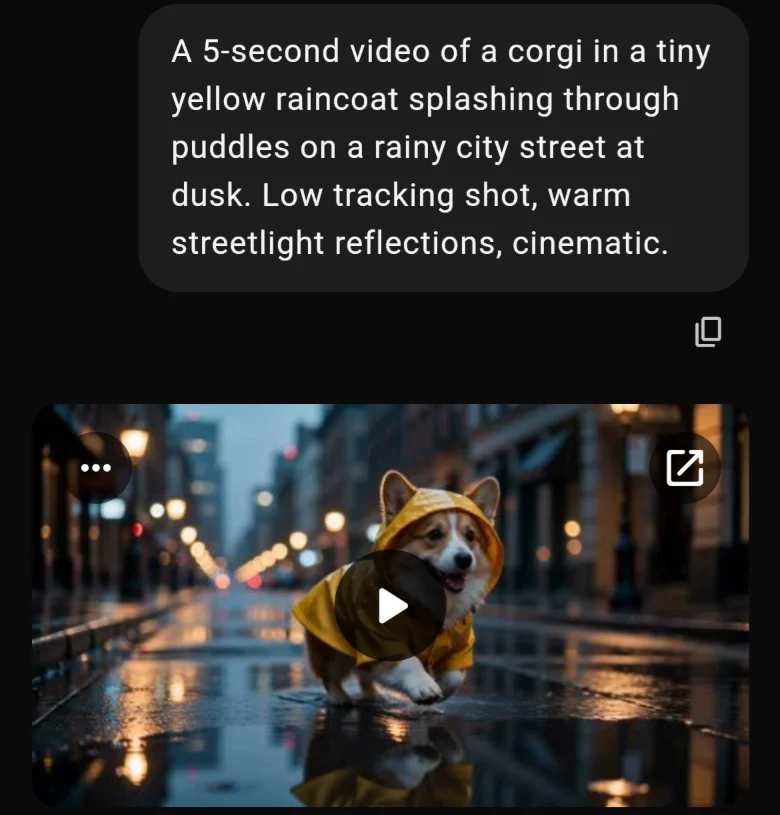
About four minutes later.
Find it again
-
Everything you make is saved
Inside Create, tap ☰ at the top left:
- Chat history (1): every conversation with the Agent.
- Library (2): all your images, videos and audio.
- Tasks (3): every creation, in progress and finished.
New Chat starts a fresh conversation.
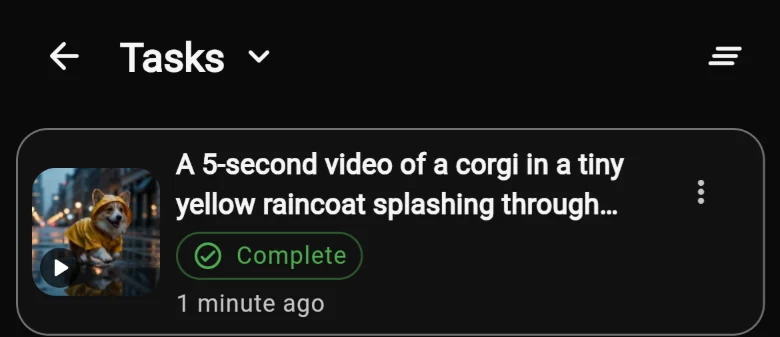
The corgi video in Tasks. 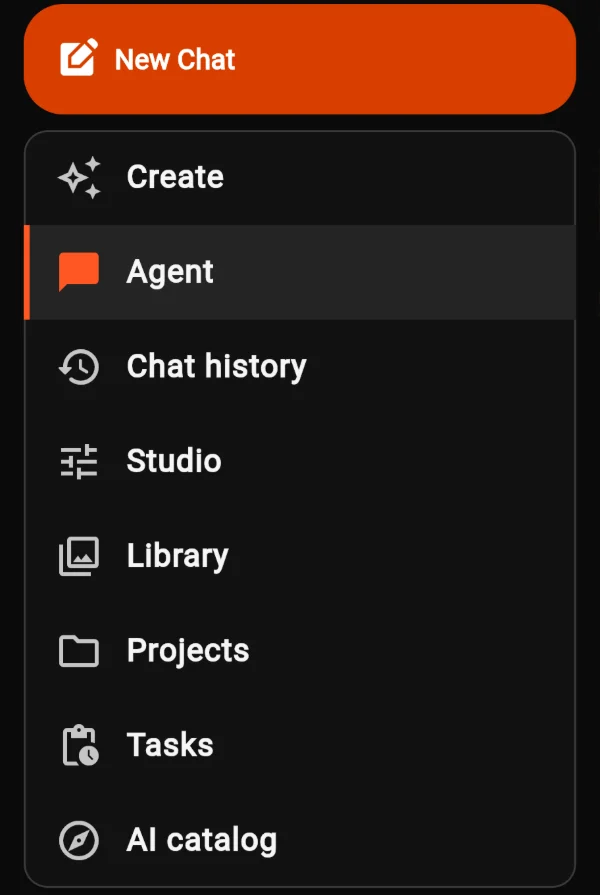
The menu inside Create.
Ask like a pro
The Agent understands everyday language. These habits get you closer on the first try.
Say the format
Start with “an image of…”, “a 5-second video of…” or “a song about…”. The Agent then knows which kind of model to use.
Describe, don’t just name
“A dog” is vague. “A corgi in a tiny yellow raincoat” gives the AI something to work with.
Use your own photo for “my”
The AI can’t know what your dog or your room looks like. Attach a photo whenever you say “my”.
Change one thing at a time
When you refine, ask for one change per message. It’s easier to see what helped.
If something goes wrong
A step failed
Open the creation and choose a retry. Only the failed steps run again, and finished results are kept. You can also choose Try another model.
“File blocked by safety check”
One of your files didn’t pass the safety check. Send a new message with a different file.
The reply is taking a while
Bigger requests take longer. You can tap Stop response and ask again in fewer words.
Not enough points
The Create button shows what the plan costs. Get more from Buy Points or Get PRO in the menu, then come back to the same chat.