Step by step
-
Find a post you love
Scroll the Home feed. Each post shows the AI model that made it. Posts you can recreate have a Try it button (1).
Tap a post to see it full screen.
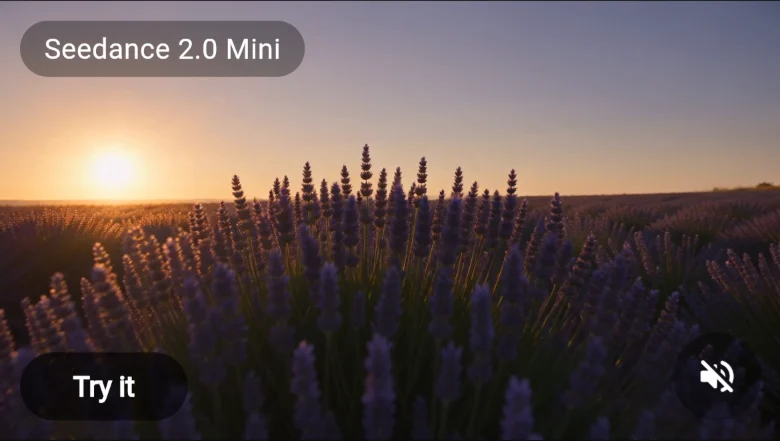
A post in the Home feed. -
Read the prompt
Many posts show the Prompt that made them (1). Tap it to read the whole thing. It’s a great way to learn which words get which results.
Try it (2) sits right below it.
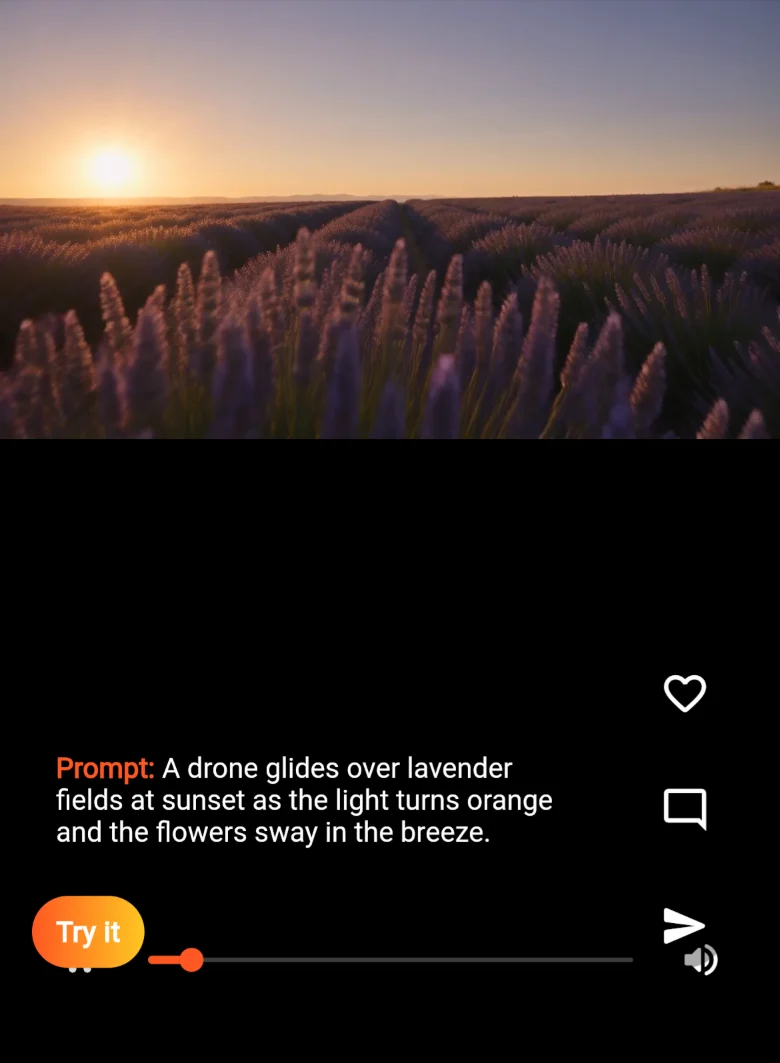
The full prompt, one tap away. -
Tap Try it
Tap Try it on the post. AiCasso asks How would you like to try it?
- Guided Tutorial walks you through each part: an intro, any photo it needs, the prompt, the options, then Generate. Great the first time.
- Open in Editor jumps straight to the full tool.
Tick Remember my choice to skip this question next time.
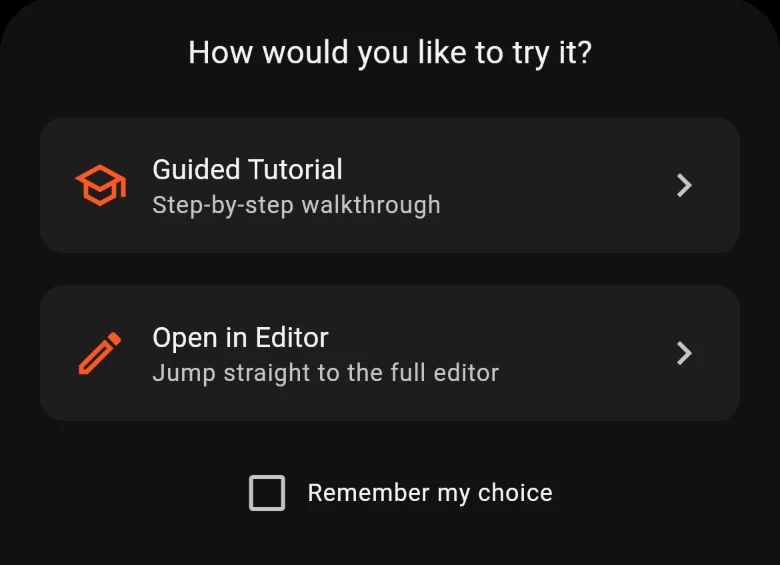
1 Guided, or 2 straight to the editor. -
Add your own photo or clip, if asked
The same AI model opens with the post’s prompt already filled in (1). The creator’s photos and clips don’t come with it. If you want to use your own, add them here, for example as a start frame (2).
The Generate button shows the exact cost before you start.
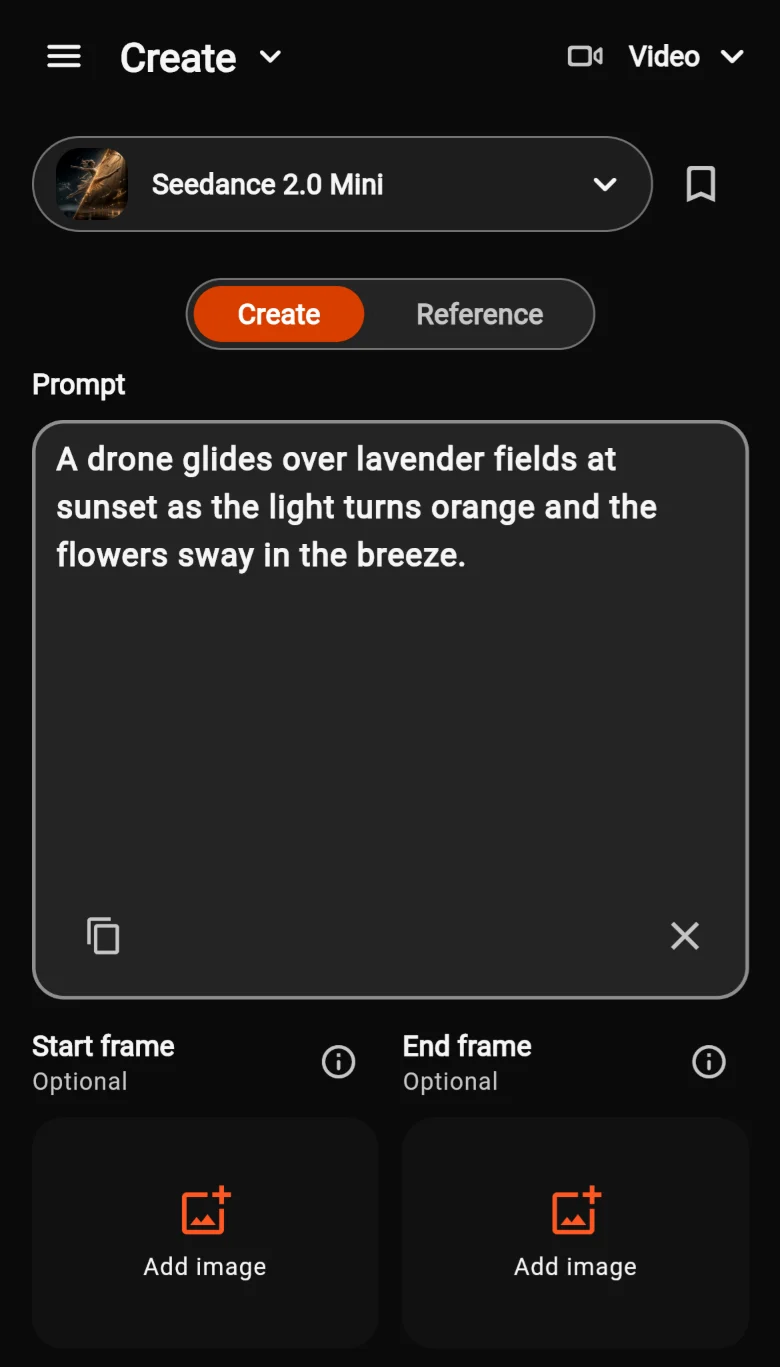
What Try it opened for the post above. -
Change a few words, then create
Keep what you liked and swap the rest: a new subject, a different place, another style. Then generate. Your result shows up in the Activity tab.
Happy with it? Tap Post (1) to share it to the feed, so others can try it too. The first time, AiCasso asks you to accept its Community guidelines.

A finished result, ready to post.
Make it yours
Change one part of the prompt and keep the rest. The look stays, the idea becomes yours.
A drone glides over lavender fields at sunset as the light turns orange and the flowers sway in the breeze.
A drone glides over sunflower fields at sunrise as the light turns gold and the flowers sway in the breeze.
Other buttons on posts
Not every post is a picture or a video. The button changes to match.

Adopt
On a pet post, Adopt lets you give that pet a home in AI Pets.
Take quiz
On a quiz post, Take quiz opens the quiz so you can play it.
Multi-step creations
Some posts were made with several steps in a row. Try it runs the same steps for you.
No button?
Some posts can’t be recreated with one tap. You can still read the prompt and use it with the Agent.