The recipe
Every major AI model maker gives the same core advice: describe who or what, what happens, where, and how it looks. For video, add how the camera moves. Write it as one or two normal sentences, not a list of keywords.
Build a prompt
Pick a few options and watch the prompt write itself. Copy it into AiCasso, or use it as a starting point and add your own detail.
Style
Setting
Light
Framing
Action (one is best)
Setting
Camera (one move)
Style & light
Genre
Mood
Instruments
Vocals
A watercolor painting of a red fox wearing a knitted scarf in a snowy forest, soft golden-hour light, close-up portrait.
A corgi in a yellow raincoat runs toward the camera on a sunny beach. Low tracking shot that follows it. Golden hour, cinematic.
An upbeat pop song about a summer road trip with my best friend, with bright acoustic guitar and female vocals.
Images, videos, songs
The recipe changes a little for each kind of creation.
Images
- Subject and what it’s doing
- Where it is
- Style: photo, watercolor, anime…
- Light and colors
- Framing: close-up, wide, from above
Making a poster, logo or sticker? Say so. Want words in the picture? Put them in “quotes” and say where they go.
Videos
- Subject
- One clear action
- Setting and time of day
- One camera move
- Style, light and mood
Short clips fit one simple action. Say how it moves: “slowly”, “gently”, “bursts”.
Songs
- Genre and era
- Mood
- Instruments
- Tempo: slow, mid, fast
- Vocals, or “instrumental”
Writing your own lyrics? Keep them apart from the description, and mark parts like [Verse] and [Chorus].
Weak vs. strong
Same idea, more detail. The strong version tells the AI exactly what to make.
a cat
A fluffy orange cat napping on a sunny windowsill, soft morning light, cozy watercolor style, close-up.
dog running fast and jumping and swimming at the beach
A corgi runs across a sunlit beach toward the camera, ears flapping. Low tracking shot. Golden hour.
happy song
An upbeat summer pop song about a road trip with friends, bright acoustic guitar, hand claps, female vocals, catchy chorus.
make it better
Change the sky to a pink sunset. Keep the people, their faces and their clothes exactly the same.
Using your own photo
When you add your own photo, the prompt’s job changes.
Editing a photo
Say exactly what to change and what to keep: “Keep everything else the same.” Repeat it on every follow-up.
Bringing a photo to life
The photo already shows the scene. Describe only the movement and the camera: “She smiles and waves, slow push-in.”
Several photos
Call them “image 1” and “image 2” and say what each is for: “the dog from image 1 in the garden from image 2.”
Use sharp photos
Clear, well-lit, high-resolution photos give the best results. For a person, a clear front-facing shot of the face works best.
Help inside the app
-
Tap the light bulb for examples
Many tools in Create have a light-bulb button, Show prompt examples, inside the prompt box (1). It opens examples written for that exact tool.
Need a walkthrough instead? Help (2) opens a Guided Tutorial for the tool.
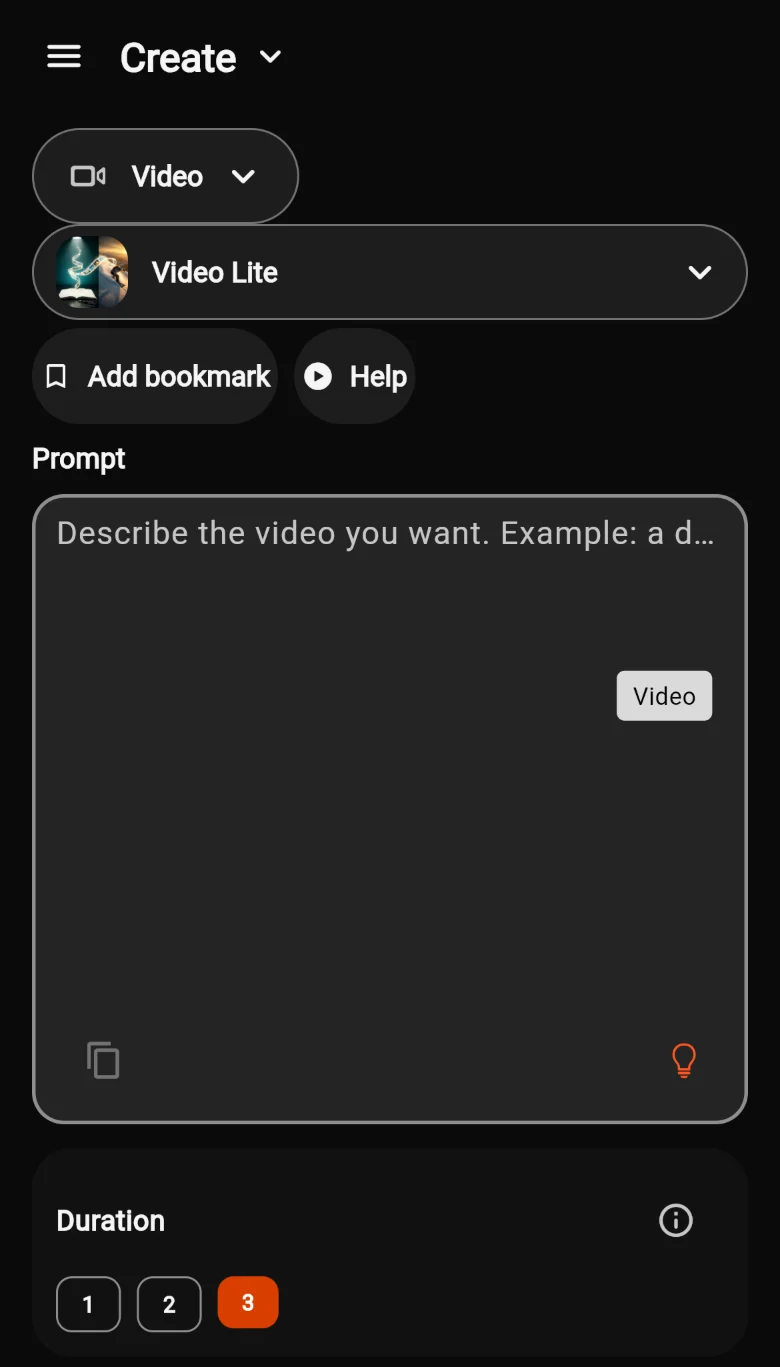
A video tool in Create. -
Pick one, then make it yours
Tap an example to put it in the prompt box. Notice how they follow the recipe: a subject, an action, a place, light, and a camera move.
Change the subject or the setting and you have your own prompt.
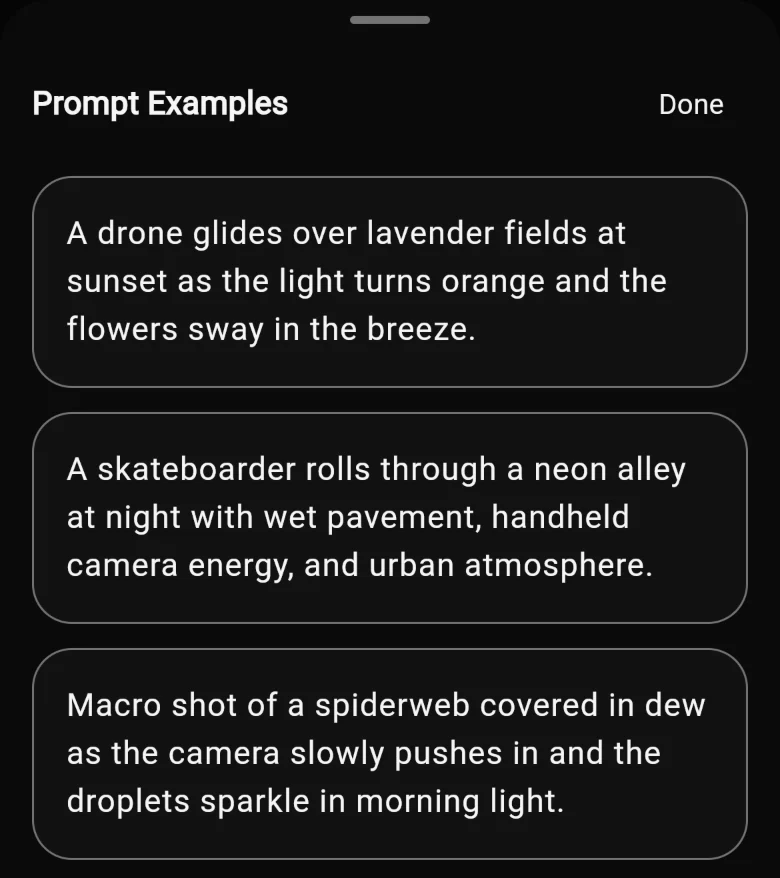
Real examples from a video tool. -
Or follow the Guided Tutorial
The tutorial walks through each part of the tool: an Intro, any photo or clip it needs, the Prompt, the Options, then Generate. The Write a Prompt step shows an example for that tool.
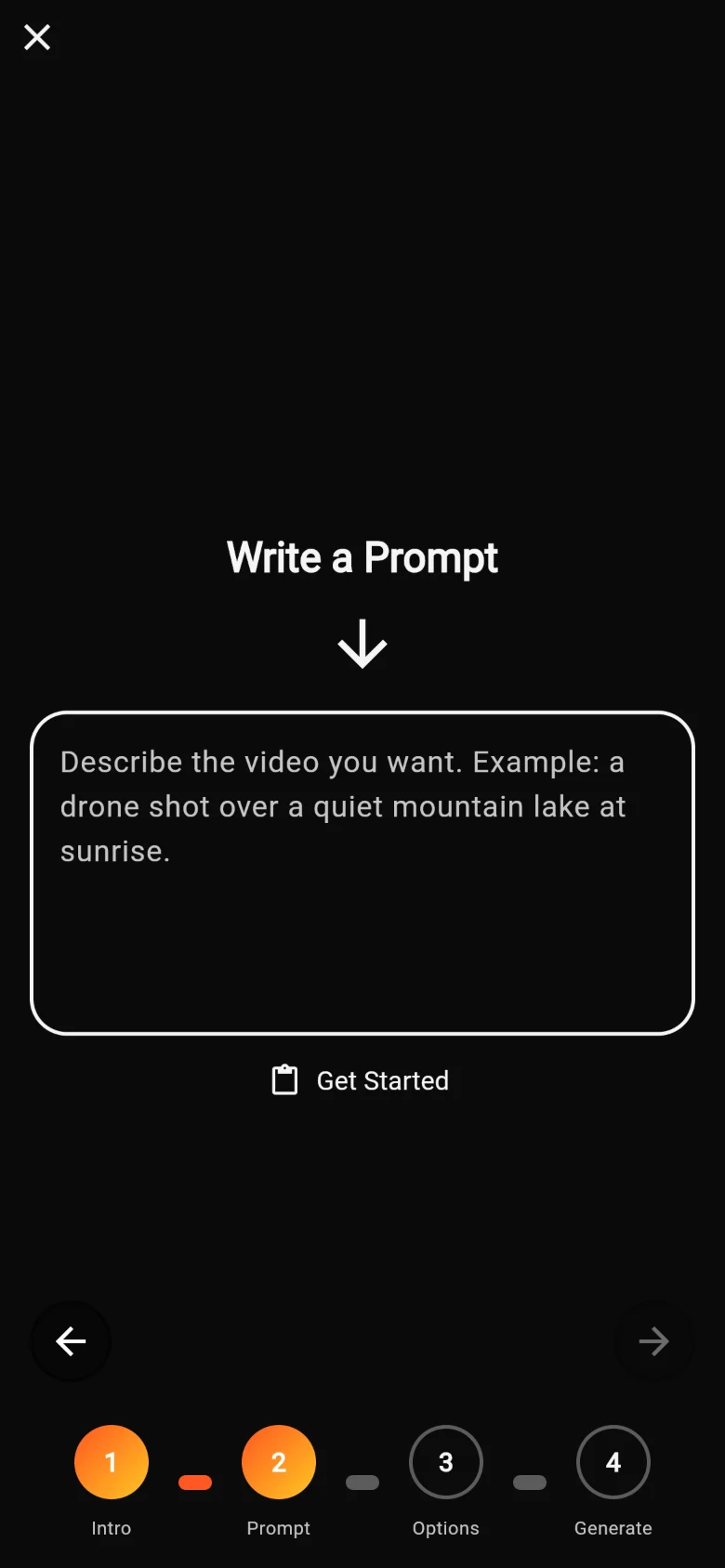
The Write a Prompt step. -
Use the recipe with the Agent too
The Agent picks the tool and settings for you, but it sends your own words to the AI as the prompt. So everything on this page applies when you chat with it. You’ll see the prompt on the plan card before anything is made.
-
Borrow from the feed
Posts in the feed show the prompt that made them. Tap Try it to start from that prompt. See how.
Common mistakes
Saying what you don’t want
“A street with no cars” can still put cars in the picture. Say what you do want: “an empty street”.
Too much in one clip
Running, jumping and swimming in five seconds looks rushed. Pick one action, or make more than one clip.
Feelings without actions
“A sad man” is vague. “A man looks down and wipes a tear” shows it.
Changing everything at once
When a result is close, change one thing per try. You’ll learn what works for that tool.
Where these tips come from
These tips summarize the prompt guides that the companies behind AiCasso’s AI models publish themselves. Each model has its own quirks, so a tip that helps one tool may matter less for another.
Official prompt guides
- OpenAI — image generation prompting guide
- Black Forest Labs — FLUX.2 prompting guide
- ByteDance — Seedream prompt guide
- ByteDance — Seedance 2.0 prompt guide
- Google Cloud — Veo 3.1 prompting guide
- Kling — text-to-video prompt guide
- Kling — image-to-video guide
- Alibaba Cloud — Wan text-to-video prompt guide
- Google Cloud — Lyria 3 prompting guide
- MiniMax — music generation guide